
How to Display the Day of the Week for Dates in Primavera P6
There are times when a Project Planner or Scheduler needs to know the day of the week a particular date falls on. This can be useful in several situations. Here are two examples:
Planning a five-day workshop: No one wants to see a five-day workshop spread over two weeks. Ideally, the workshop should start on a Monday and finish on the Friday of the same week.
Checking contract award dates: When using a seven-day calendar, you may want to ensure that a contract award date does not fall on a Saturday or Sunday.
In Microsoft Project, displaying the day of the week is straightforward. You simply select a date format that includes the day of the week.
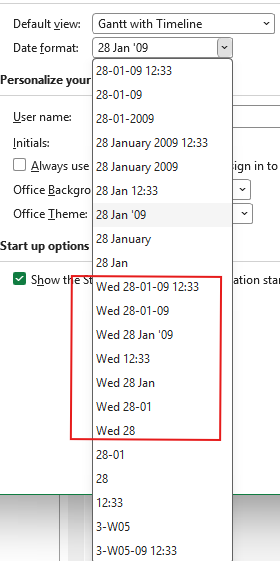
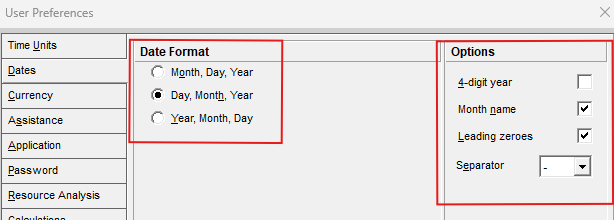
Unfortunately, Primavera P6 does not offer the same flexibility. To the best of my knowledge, Primavera P6 (as of R24.12) only provides three date formats to choose from, with four additional settings to customise them. However, none of these options allows you to display the day of the week alongside a date.
In the YouTube video below, I will walk you through a step-by-step process for setting up a Primavera P6 layout that helps you identify whether activity start and finish dates fall on a Monday, Tuesday, Wednesday, or any other day of the week.
This workaround uses User Defined Fields (UDFs), a Global Change, and a Global Change function to achieve the desired result. The good news is that the setup only needs to be completed once.
This workaround uses User Defined Fields (UDFs), Global Change, and a Global Change function to achieve the desired result. The good news is that the setup only needs to be completed once.
One important thing to remember: Global Change does not update results dynamically. You must rerun the Global Change whenever you want to refresh the output and reflect any changes to your activity dates.
Watch the video below to learn how to set this up in Primavera P6.